1. What is a passkey?
A passkey is a digital credential created and stored on your device, secured by your face recognition (Face ID), fingerprint, or device passcode. It is a secure and faster login method supported by Apple, Google, Microsoft, and other platforms and its standard is internationally recognised.
Your passkey never leaves your device and only works with your Tiger account. It blocks common attack methods that target traditional passwords and OTPs.
This passkey is designed for login to your Tiger website and Tiger Trade App, and all matching takes place entirely on your device.
2. How to add a passkey?
Please make sure your App has been updated to version 9.6.2.0 or above. For device and system requirements, see the Appendix.
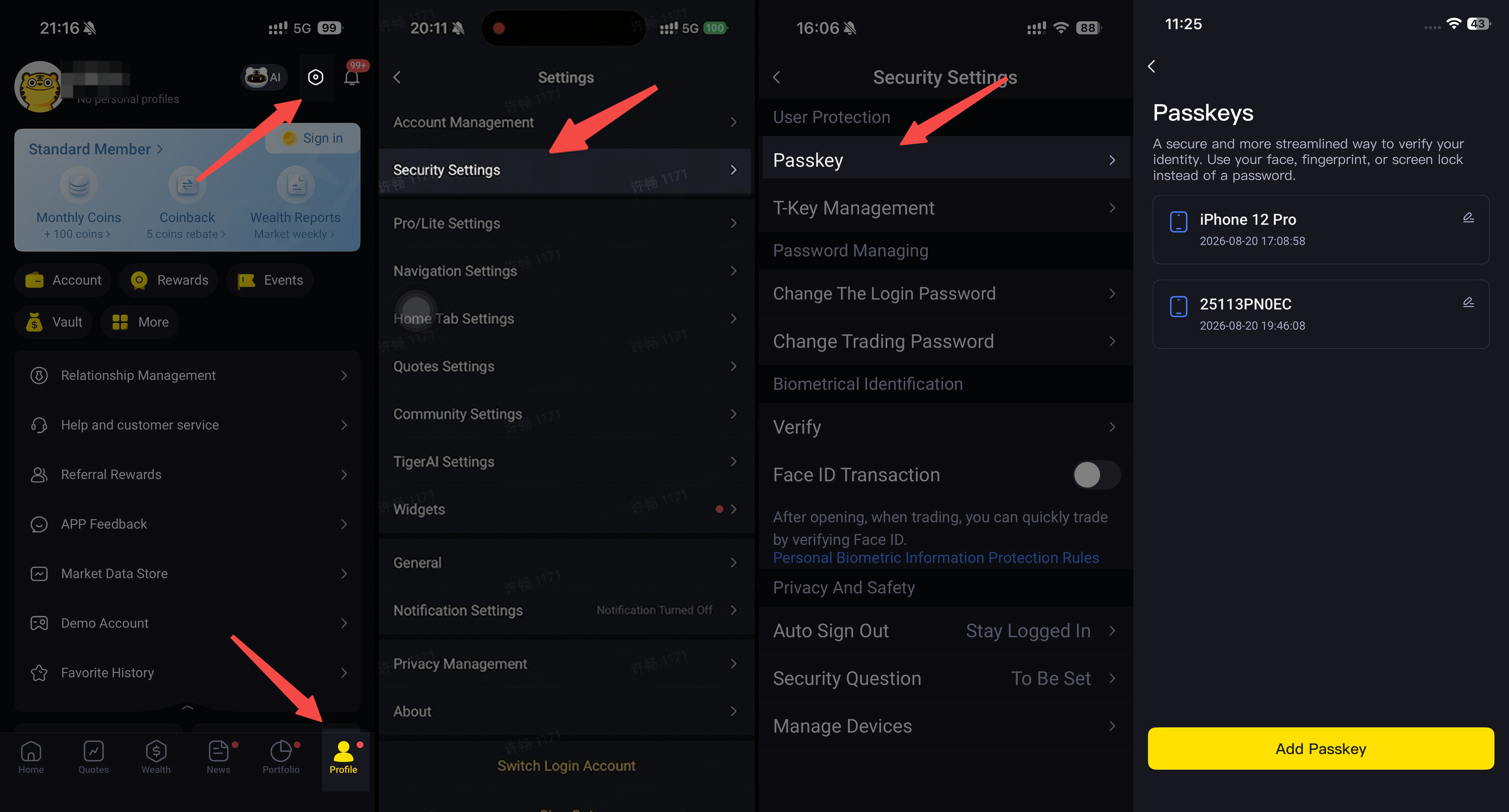
Go to Me > Settings > Security Center > Passkey and tap Add passkey
Complete an identity verification
Your device will show a system dialog. Some devices first ask where to save the passkey (e.g., "iCloud Keychain" on Apple devices or "Google Password Manager" on Android). Keep the default option and tap Continue
Confirm with Face ID, your fingerprint or your device passcode, then give the passkey a name you will recognise (e.g., "My iPhone")
3. How to manage a passkey?
On the same page, you can see all your passkeys, rename them, or delete them.
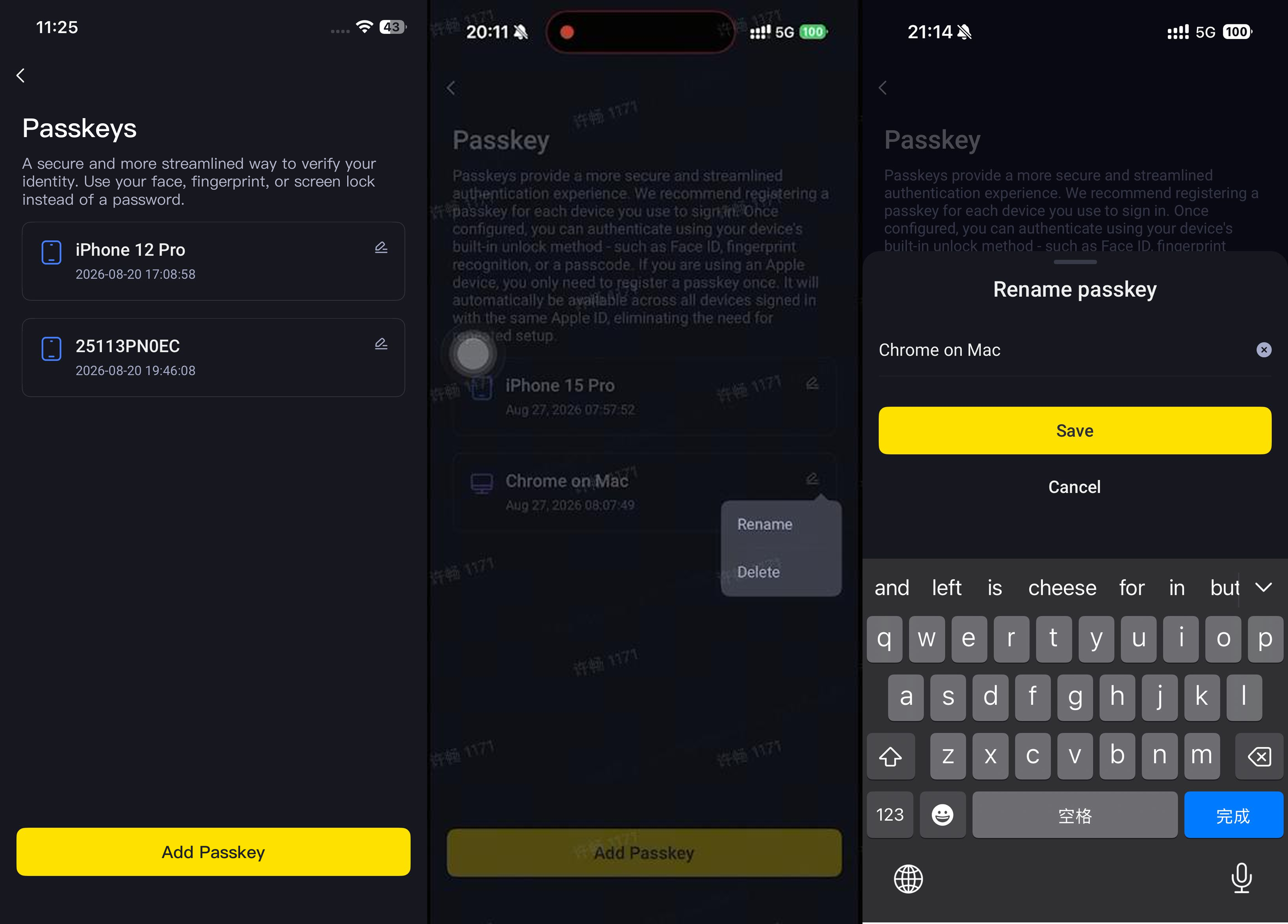
We advise you to register a passkey on each device you use regularly. Up to three (3) passkeys may be registered per account.
If only one passkey remains on your account, it cannot be deleted, it may only be replaced. This ensures your account always retains the passkey login option.
You will receive an email and SMS notification whenever a passkey is added, replaced, or deleted. If any such change was not made by you, please reset your login password immediately and contact our client service team without delay.
Security reminder: Only add a passkey to a device that belongs to you. Never add one with a shared computer or someone else's device.
4. How to log in with a passkey?
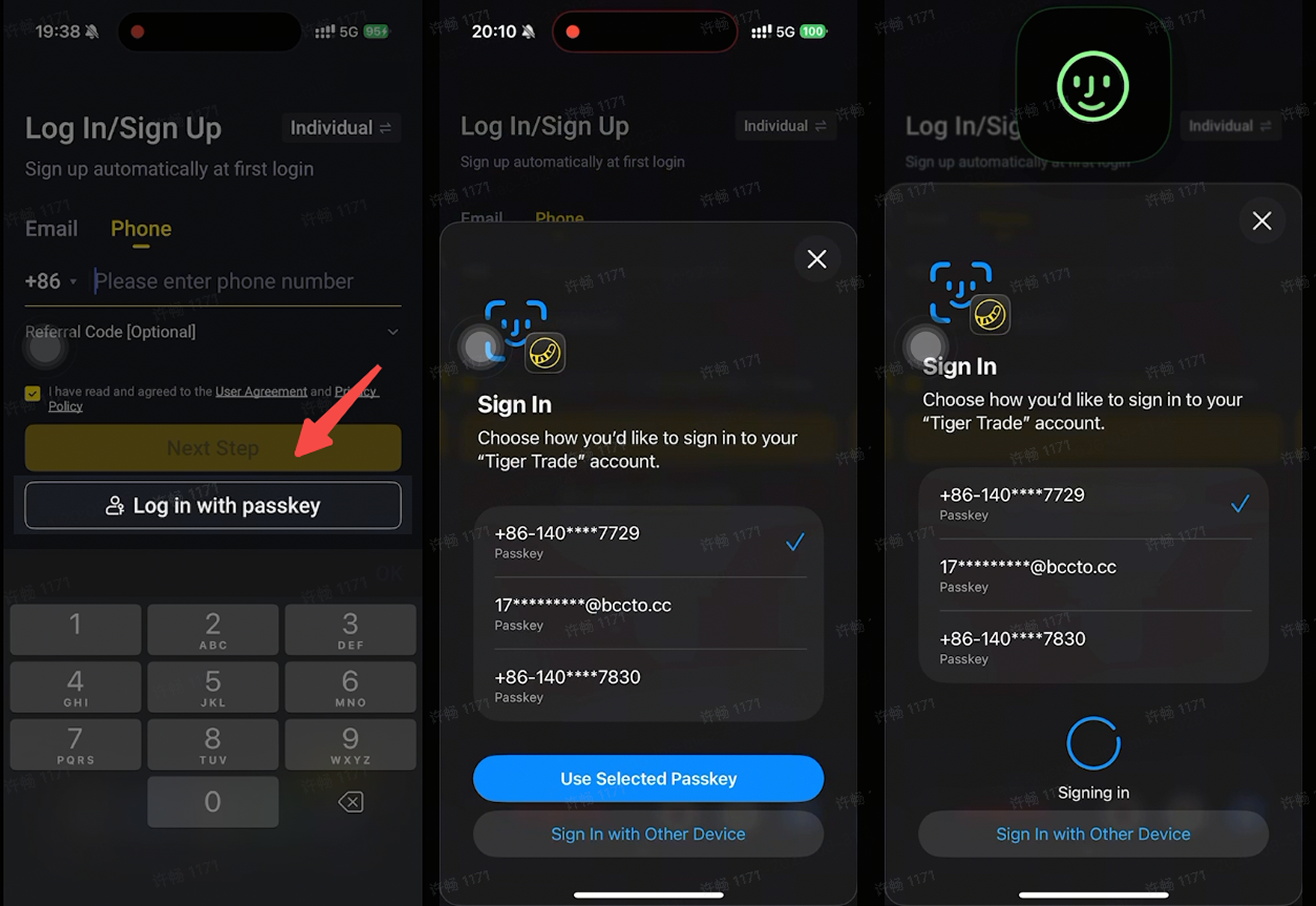
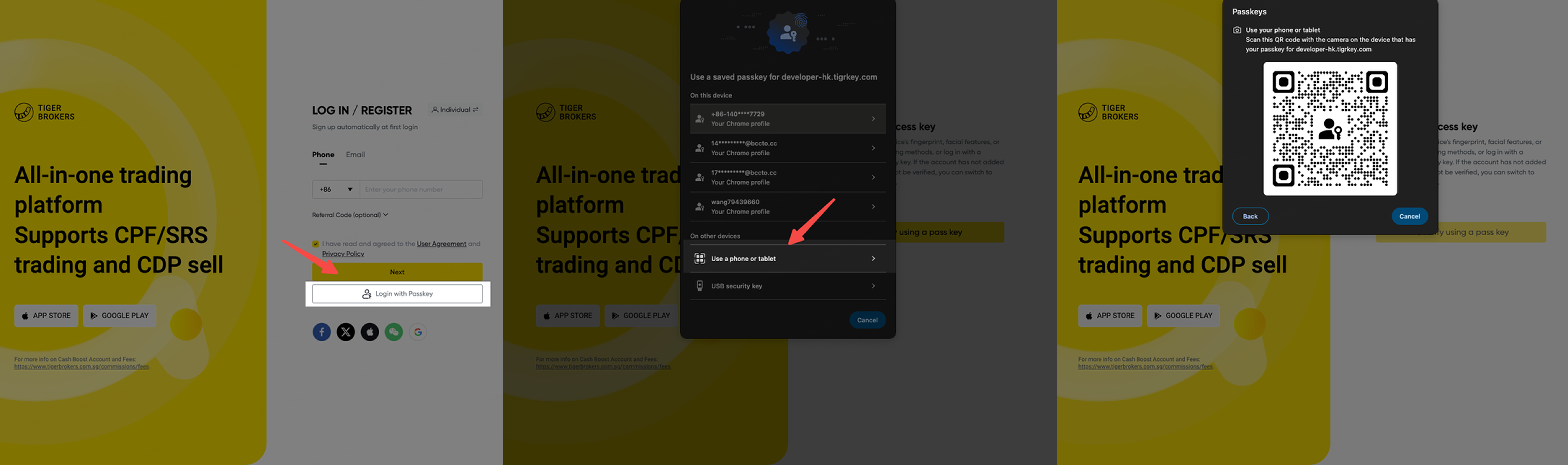
Option 1: The login page shows a "Passkey" entry
Tap Passkey. Your device will automatically detect the available passkeys, confirm with Face ID, your fingerprint, or your device passcode. If your device holds passkeys for multiple accounts, select the one you wish to log in with.
Option 2: Enter your account first, then choose passkey
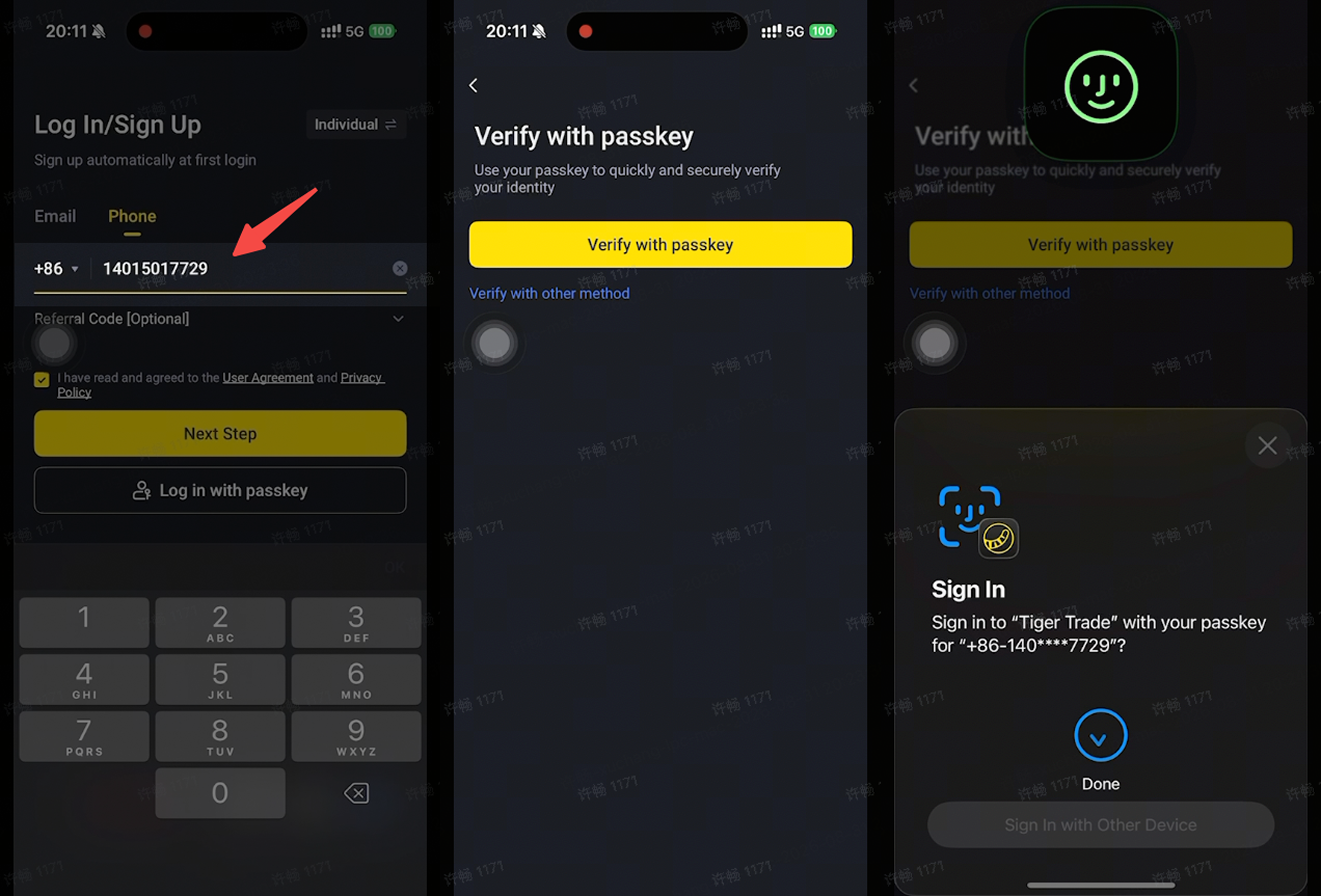
Enter your phone number, email, or username and tap Next. Select Passkey from the verification methods, then confirm with Face ID or your fingerprint to complete login.
If the system detects an unusual login (e.g., logging for the first time with a new device or from an irregular login location), additional verification may be required as a security control.
Using your phone to verify when logging in on a computer
If you have only registered a passkey on your phone, you do not need to add a separate passkey to log in on a computer. You may complete verification by scanning a QR code or connecting via Bluetooth with your phone.
5. Frequently asked questions
Q1. Why can't I add a passkey?
In most cases, this is because the device does not have a lock screen passcode set, or its system version is outdated (see Appendix). If you use a password manager other than the one built into your system, it may not be supported.
Q2. Verification failed, or no passkey could be found?
This will not prevent you from logging in. Close the verification dialog, tap "Switch to another verification method" at the bottom of the page, and log in using your password and an SMS verification code. You may then delete the non-functioning passkey and add a new one.
If you have deleted a passkey in the Tiger Trade App but it still appears at login, record may still be stored on your device. You can remove it via.
iPhone/iPad: Settings > General > AutoFill & Passwords
Android: Settings > Google > Password Manager
Mac: Passwords app or Keychain Access
Windows: Settings > Accounts > Passkeys
Q3. I switched to a new phone and my passkey did not sync.
Apple users: Both phones must be signed in to the same Apple ID, with iCloud > Passwords and Keychain enabled.
Android users: Enable syncing under Settings > Google > Password Manager.
If your passkey does not sync, this is expected and will not affect your account. Simply log in using your password or a verification code, then add a new passkey for your new phone. Certain brands use their own password managers, which may not support syncing.
Q4. What should I do if I lose my phone?
A passkey is bound to the Face ID, fingerprint, or screen lock passcode of the registered device only, and cannot be used by any other party to access your account. We advise that you log in to another device as soon as possible and delete the passkey associated with the lost device.
Q5. Can I still use my password after adding a passkey? Do I still need a passkey if I already use the Tiger Token (OTP)?
Yes, you may continue to use all of these methods. A passkey does not replace your password, SMS verification codes, or the Tiger Token. We advise retaining these as backup login methods, such as when switching devices or using another device temporarily.
Q6. What is the difference between a passkey, password and trading password?
Passkey
A passkey is a digital credential created and stored on your device, secured by your Face ID, fingerprint, or device passcode. It replaces your traditional password with a faster, more secure login method.
Password
A password is an alphanumeric combination that you set up and use to log in to your Tiger account. Different login methods may apply at different steps — e.g., a password or passkey to log in to your Tiger account, and a trading password to confirm actions within the app.
Trading Password
A trading password is a separate credential used to authorise specific actions within your Tiger account, such as placing orders. Unlike your login password or passkey, which verify your identity to access the app, your trading password provides an additional layer of security for sensitive actions taken within the app.
Appendix. Device requirements
A passkey requires a phone or computer that supports Face ID, fingerprint or a similar unlocking method, with the screen lock enabled. HarmonyOS is not currently supported.
To log in via browser, please update to Chrome 108, Safari 16, Edge 108 or Firefox 119 or above. To use the App, please update to version 9.6.2.0 or above.
If your device does not support Face ID or fingerprint recognition, you my use a physical security key (USB / NFC, which you need to purchase separately).
When adding a passkey, select the option to use a security key in the system dialog, then insert or tap it against your device as prompted. If prompted to set a PIN, please contact the manufacturer for their software, or create one via Chrome under Settings > Privacy and Security > Security > Manage Security Keys.
Need help?
If you encounter any issues while using your passkey, please contact our online Client Service Team.